Introduction
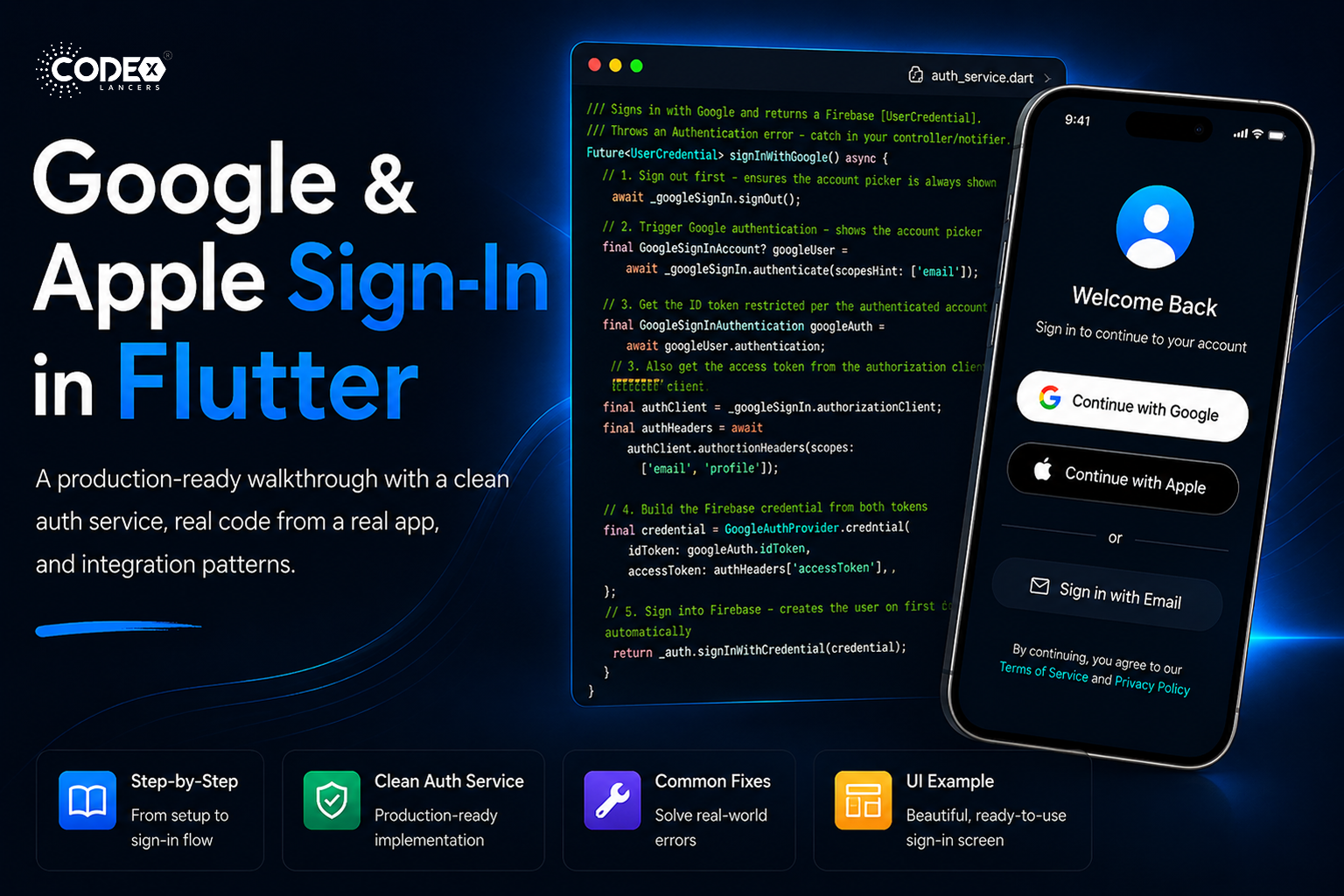
A production-grade walkthrough clean auth service, real code from a real app, and integration patterns. Every additional step between a user opening your app and being inside it is a drop-off point. Google and Apple Sign-In are the fastest path from “curious” to “engaged” two taps and you’re in, no password to forget.
01 / Prerequisites
- A Firebase project with Authentication enabled Google and Apple providers turned on.
- FlutterFire CLI installed and
flutterfire configurealready run. - For Apple Sign-In: an Apple Developer account with Sign In with Apple capability enabled.
- For Android Google Sign-In: SHA-1 fingerprint registered in Firebase Console.
02 / Dependencies & Setup
Add to pubspec.yaml
dependencies:
  flutter_dotenv: ^5.2.1
  firebase_core: ^3.10.1
  firebase_auth: ^5.5.1
  google_sign_in: ^7.2.0
  sign_in_with_apple: ^7.0.1

flutter:
  assets:
    - .env
Then run:
flutter pub getCreate your .env file
Store sensitive config outside of source code. Create a .env file in your project root and add it to .gitignore:
SERVER_CLIENT_ID=123456789-abcdefg.apps.googleusercontent.comInitialize Firebase in main.dart
You must call GoogleSignIn.instance.initialize() before runApp(), after Firebase is ready:
import 'package:flutter_dotenv/flutter_dotenv.dart';
import 'package:firebase_core/firebase_core.dart';
import 'package:your_app/service/auth_service.dart';

void main() async {
  WidgetsFlutterBinding.ensureInitialized();

  await dotenv.load(fileName: '.env');

  await Firebase.initializeApp(
    options: DefaultFirebaseOptions.currentPlatform,
  );

  await AuthService().initialize();

  runApp(const MyApp());
}
⚠️ If you call authenticate() or authorizationClient before initialize(), Flutter throws a StateError: instance not initialized. This crashes silently in release builds. Always initialize first.
03 / Getting the Server Client ID
The serverClientId is the Web Client ID from Google Cloud Console not the Android or iOS client. It is required for Google Sign-In on Android and enables server-side token verification.
- Go to console.cloud.google.com and select your Firebase project.
- Navigate to APIs & Services → Credentials.
- Under OAuth 2.0 Client IDs, find the entry with type “Web application” usually named “Web client (auto created by Google Service)”.
- Click it and copy the Client ID field it ends in
.apps.googleusercontent.com. - Paste it into your
.envfile asSERVER_CLIENT_ID=.
Can’t find the Web Client? Go to Firebase Console → Authentication → Sign-in method → Google → expand arrow. Firebase will show the Web SDK configuration containing the same client ID.
04 / The Clean AuthService
Here’s the full authentication service auth logic only, no database concerns. Use it as a foundation and add your own data layer on top.
lib/service/auth_service.dart
import 'dart:developer' as log;
import 'dart:math';
import 'package:firebase_auth/firebase_auth.dart';
import 'package:flutter_dotenv/flutter_dotenv.dart';
import 'package:google_sign_in/google_sign_in.dart';
import 'package:sign_in_with_apple/sign_in_with_apple.dart';

class AuthService {
  static final AuthService _instance = AuthService._internal();
  factory AuthService() => _instance;
  AuthService._internal();

  final FirebaseAuth _auth = FirebaseAuth.instance;
  final GoogleSignIn _googleSignIn = GoogleSignIn.instance;

  String get _serverClientId => dotenv.env['SERVER_CLIENT_ID'] ?? '';

  User? get currentUser => _auth.currentUser;
  bool get isSignedIn => currentUser != null;

  Future initialize() async {
    try {
      await _googleSignIn.initialize(serverClientId: _serverClientId);
      log.log('[AuthService] Google Sign-In initialized');
    } catch (e) {
      log.log('[AuthService] Google init error: $e');
      rethrow;
    }
  }

  Future signInWithGoogle() async {
    await _googleSignIn.signOut();
    final GoogleSignInAccount googleUser =
        await _googleSignIn.authenticate(scopeHint: ['email']);
    final GoogleSignInAuthentication googleAuth = googleUser.authentication;
    final authClient = _googleSignIn.authorizationClient;
    final authorization =
        await authClient.authorizationForScopes(['email', 'profile']);
    final credential = GoogleAuthProvider.credential(
      idToken: googleAuth.idToken,
      accessToken: authorization?.accessToken,
    );
    return _auth.signInWithCredential(credential);
  }

  Future signInWithApple() async {
    final rawNonce = _generateNonce();
    final appleCredential = await SignInWithApple.getAppleIDCredential(
      scopes: [
        AppleIDAuthorizationScopes.email,
        AppleIDAuthorizationScopes.fullName,
      ],
    );
    final oAuthCredential = OAuthProvider('apple.com').credential(
      idToken: appleCredential.identityToken,
      rawNonce: rawNonce,
      accessToken: appleCredential.authorizationCode,
    );
    return _auth.signInWithCredential(oAuthCredential);
  }

  Future signOut() async {
    await Future.wait([
      _auth.signOut(),
      _googleSignIn.signOut(),
    ]);
  }

  static String getFirebaseErrorMessage(FirebaseAuthException e) {
    switch (e.code) {
      case 'user-not-found': return 'No account found with this email.';
      case 'wrong-password': return 'Incorrect password.';
      case 'email-already-in-use': return 'This email is already registered.';
      case 'invalid-email': return 'Please enter a valid email.';
      case 'weak-password': return 'Password is too weak.';
      case 'too-many-requests': return 'Too many attempts. Try again later.';
      case 'network-request-failed': return 'No internet connection.';
      case 'operation-not-allowed': return 'This sign-in method is not enabled.';
      case 'account-exists-with-different-credential':
        return 'An account with this email exists with a different sign-in method.';
      default: return 'Authentication failed. Please try again.';
    }
  }

  String _generateNonce([int length = 32]) {
    const charset =
        '0123456789ABCDEFGHIJKLMNOPQRSTUVXYZabcdefghijklmnopqrstuvwxyz-._';
    final random = Random.secure();
    return List.generate(
        length, (_) => charset[random.nextInt(charset.length)]).join();
  }
}
05 / Platform Configuration
Android Get SHA-1 Fingerprint
keytool -list -v \
  -keystore ~/.android/debug.keystore \
  -alias androiddebugkey \
  -storepass android -keypass android
Add this SHA-1 in Firebase Console → Project Settings → Your Android app → Add fingerprint. Then re-download google-services.json and place it at android/app/google-services.json.
⚠️ Add both debug and release SHA-1. Missing the release SHA-1 causes silent failures after publishing to the Play Store.
Android Verify build.gradle files
android/build.gradle
buildscript {
  dependencies {
    classpath 'com.google.gms:google-services:4.4.2'
  }
}
android/app/build.gradle
apply plugin: 'com.google.gms.google-services'iOS Add Reversed Client ID URL Scheme
Open GoogleService-Info.plist, find the REVERSED_CLIENT_ID value, then add it to ios/Runner/Info.plist:
<key>CFBundleURLTypes</key>
<array>
  <dict>
    <key>CFBundleTypeRole</key>
    <string>Editor</string>
    <key>CFBundleURLSchemes</key>
    <array>
      <string>com.googleusercontent.apps.YOUR_REVERSED_CLIENT_ID</string>
    </array>
  </dict>
</array>
iOS Apple Sign-In Setup
- Open
ios/Runner.xcworkspacein Xcode → Runner target → Signing & Capabilities → + Capability → Sign In with Apple. - Log into developer.apple.com → Identifiers → select your App ID → check Sign In with Apple → Save. Regenerate your provisioning profile.
- Firebase Console → Authentication → Sign-in method → Apple → Enable. Paste your App ID as the Service ID.
- Xcode handles the entitlement automatically. Verify
Runner.entitlementscontainscom.apple.developer.applesigninwith valueDefault.
06 / Common Errors & Fixes
- StateError: instance not initialized — Call
await AuthService().initialize()inmain()beforerunApp(). - sign_in_failed (Android) — SHA-1 missing or incorrect. Add both debug and release SHA-1 in Firebase Console, then re-download
google-services.json. - PlatformException: sign_in_canceled — User closed the picker. Expected behavior — handle silently without showing an error toast.
- operation-not-allowed — Go to Firebase Console → Authentication → Sign-in method → Enable Google.
- idToken is null — Always check
googleAuth.idToken != nullbefore creating credentials. - Missing REVERSED_CLIENT_ID (iOS) — Add
CFBundleURLSchemesusing theREVERSED_CLIENT_IDfromGoogleService-Info.plist. - AuthorizationError: canceled (Apple) — Catch
SignInWithAppleAuthorizationExceptionand ignore whene.code == AuthorizationErrorCode.canceled. - Apple name is null (returning user) — Apple only provides the name on first sign-in. Save it to your database when
isNewUser == true. - account-exists-with-different-credential — Use
fetchSignInMethodsForEmail()and guide the user to link accounts. - Apple Sign-In not working on Simulator — iOS Simulator does not support Apple Sign-In. Always test on a real device.
07 / UI Example
Future loginWithGoogle() async {
  setState(() => isLoading = true);
  final result = await AuthService().signInWithGoogle();
  setState(() => isLoading = false);
  if (result.isSuccess) {
    _showMessage("Google Login Success ✅");
  } else {
    _showMessage(result.error ?? "Error");
  }
}

Future loginWithApple() async {
  setState(() => isLoading = true);
  final result = await AuthService().signInWithApple();
  setState(() => isLoading = false);
  if (result.isSuccess) {
    _showMessage("Apple Login Success 🍎");
  } else {
    _showMessage(result.error ?? "Error");
  }
}
08 / Conclusion & Best Practices
- Initialize once — call
AuthService().initialize()inmain()after Firebase and beforerunApp(). - Server Client ID = Web Client — get the Web application client from Google Cloud Console, not Android or iOS.
- Sign out Google on each sign-in — call
_googleSignIn.signOut()before authenticating so the picker always appears. - Both tokens for Firebase — always pass both
idTokenandaccessTokentoGoogleAuthProvider.credential(). - Use a secure nonce for Apple — generate with
Random.secure(), always passrawNonceto the Firebase credential. - Save Apple name immediately — it’s only available on the first sign-in; save to your database when
isNewUser == true. - Detect new vs returning users — use
userCredential.additionalUserInfo?.isNewUserto branch your post-auth flow. - Sign out from both — always call both
_auth.signOut()and_googleSignIn.signOut()on logout. - SHA-1: debug + release — add both fingerprints to Firebase or Google Sign-In breaks in production builds.
- Test Apple on a real device — iOS Simulator does not support Apple Sign-In.